FAST FIXES
enough to do between meetings
new fixes every month
fixes from real client work
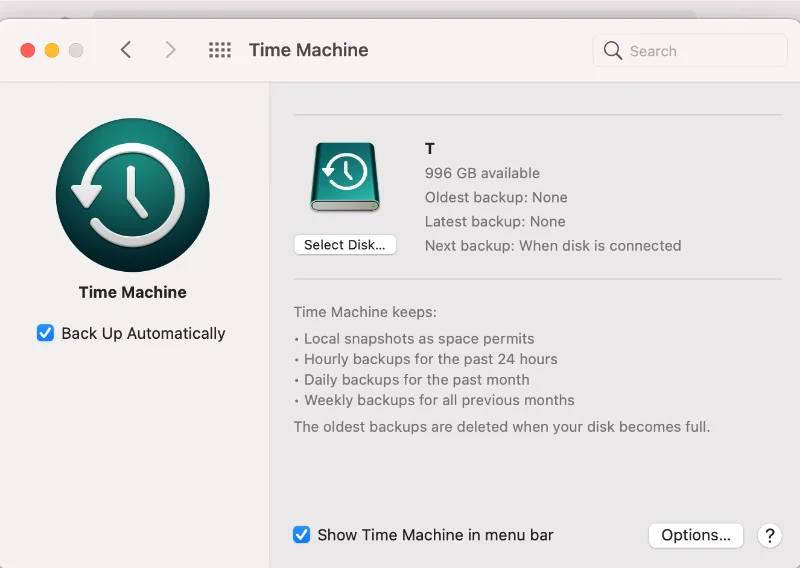
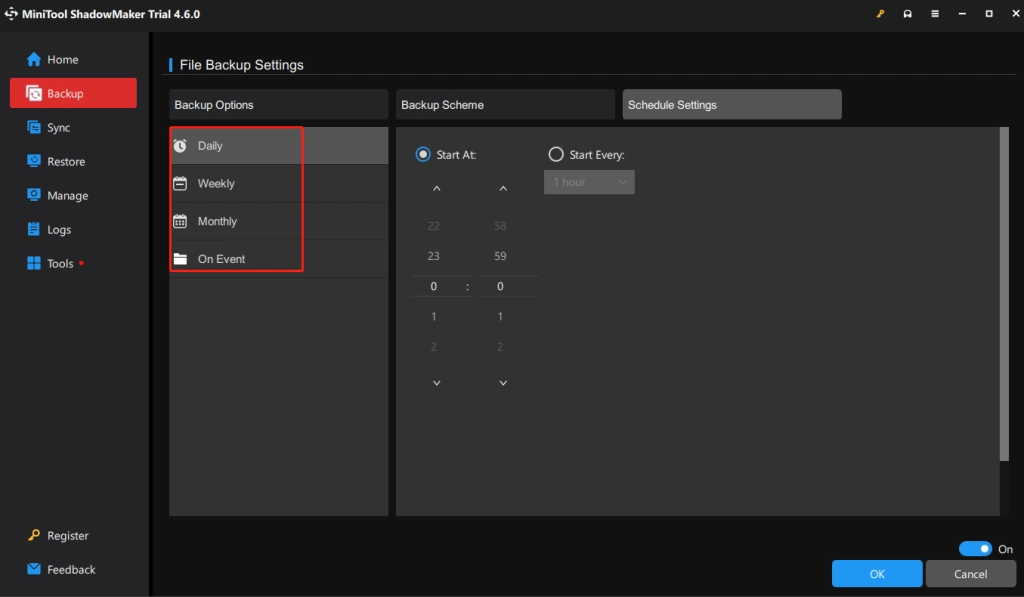
Before anyone travels this summer, confirm laptops and phones are backed up to OneDrive, SharePoint, or your business backup solution, not just saved locally. Go to Settings > Accounts > Windows Backup (or Time Machine on Mac) and turn on automatic backup if it is not already running.
Lost and stolen laptops spike every July and August as travel season ramps up. A backed-up device is an inconvenience. An unbacked-up one is a lost client file, a lost project, or a lost contract with no way to get it back.
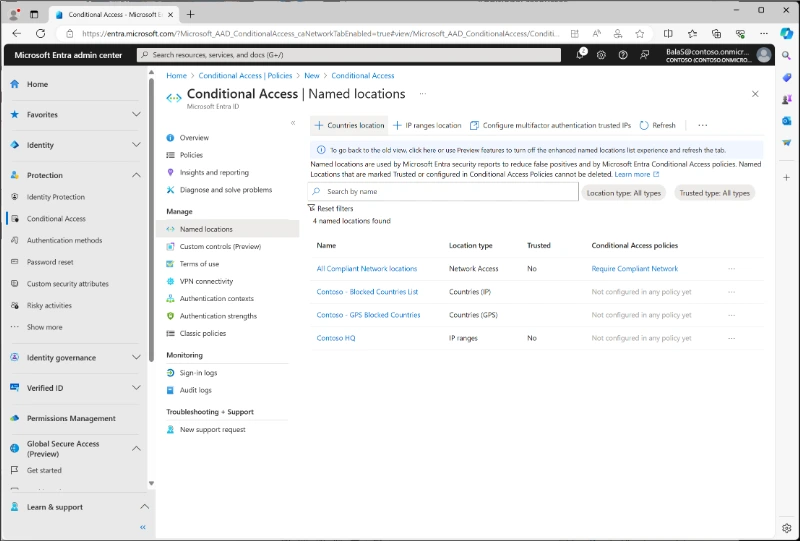
For Microsoft 365 users: go to Microsoft Entra admin center > Protection > Conditional Access, and enable impossible travel or atypical location alerts if they are not already on. For Google users: go to Google Workspace Admin console > Security > Alert Center, and enable impossible travel or atypical location alerts if they are not already on.
Most infostealer logins get caught the same way: a sign-in from a country nobody on the team has ever traveled to. Even when a password is stolen and typed in correctly, an alert flags the login anyway because no one can be in Florida and the Amalfi Coast fifteen minutes apart.
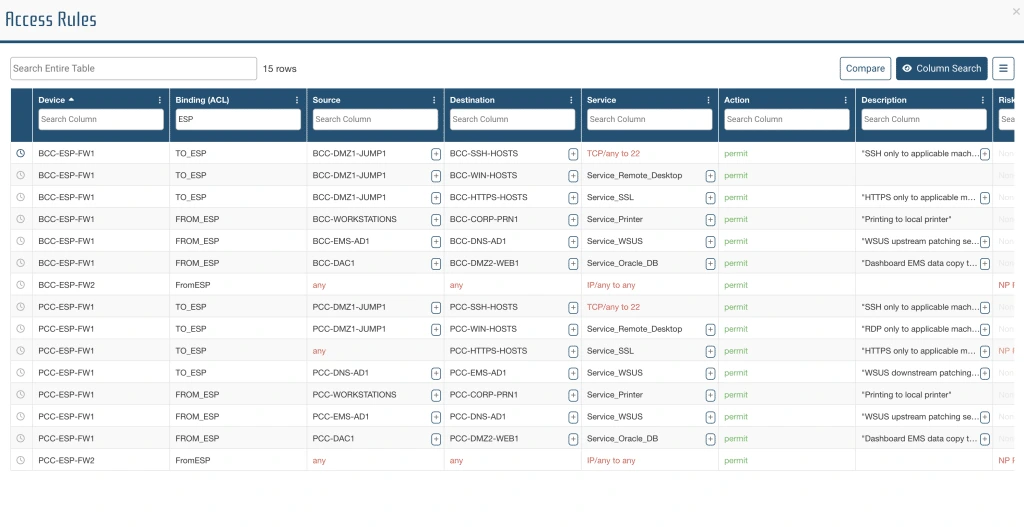
Log into your firewall or router admin panel and look for sections called Port Forwarding, NAT, Remote Access, VPN, or Published Services. Review any rule that exposes a device or service to the internet, especially Remote Desktop, cameras, servers, NAS devices, printers, or old office PCs. If you see something outdated, unused, or unfamiliar, disable it or send it to IT for review before leaving it live.
Businesses often expose a system so someone can access it from home, then forget it is there. That is exactly the kind of security gap Rob warned about. Anything reachable from the internet can be found and tested by attackers, and Verizon’s latest breach report shows vulnerability exploitation is now one of the top ways they get in.
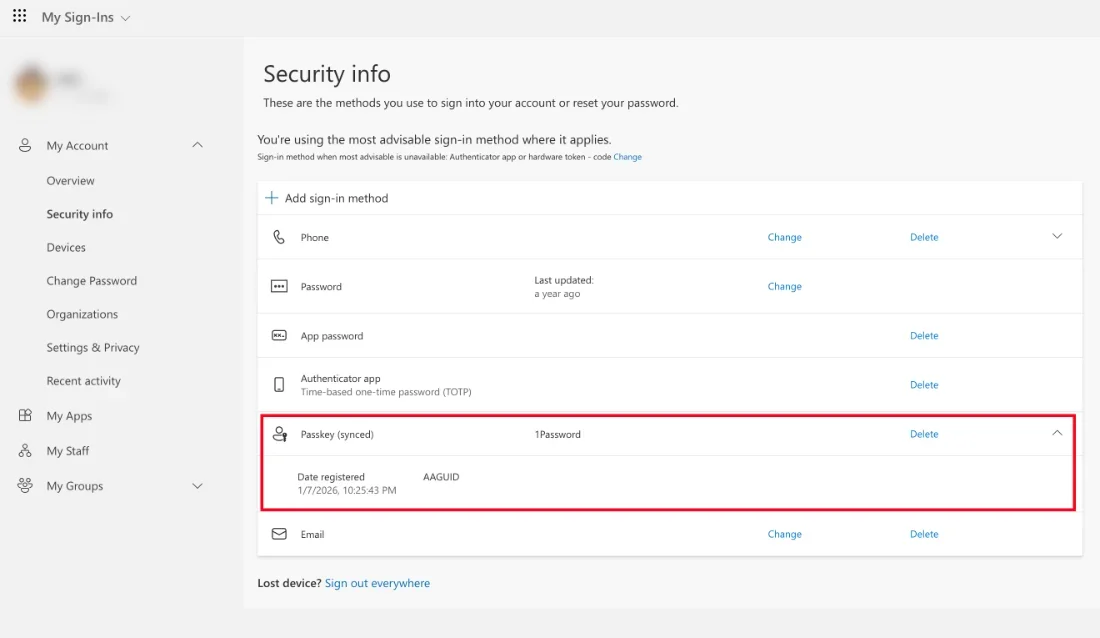
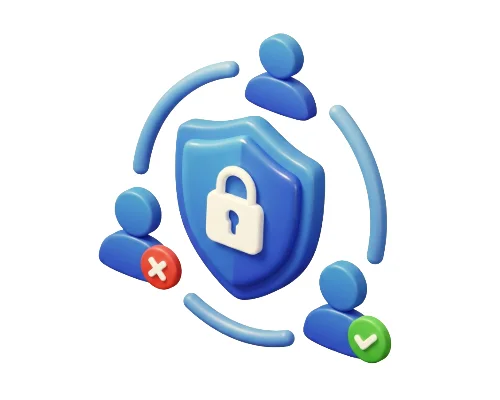
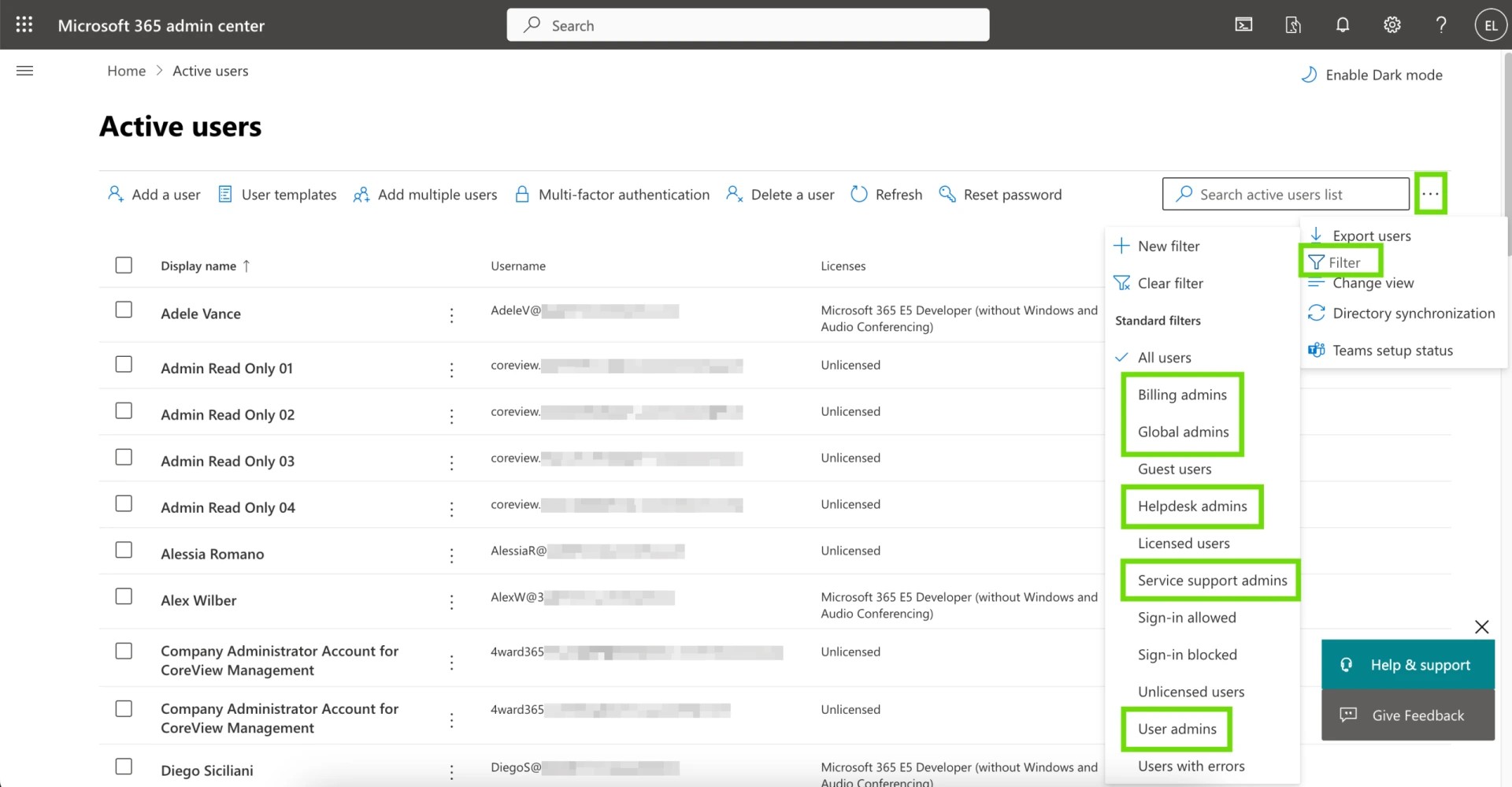
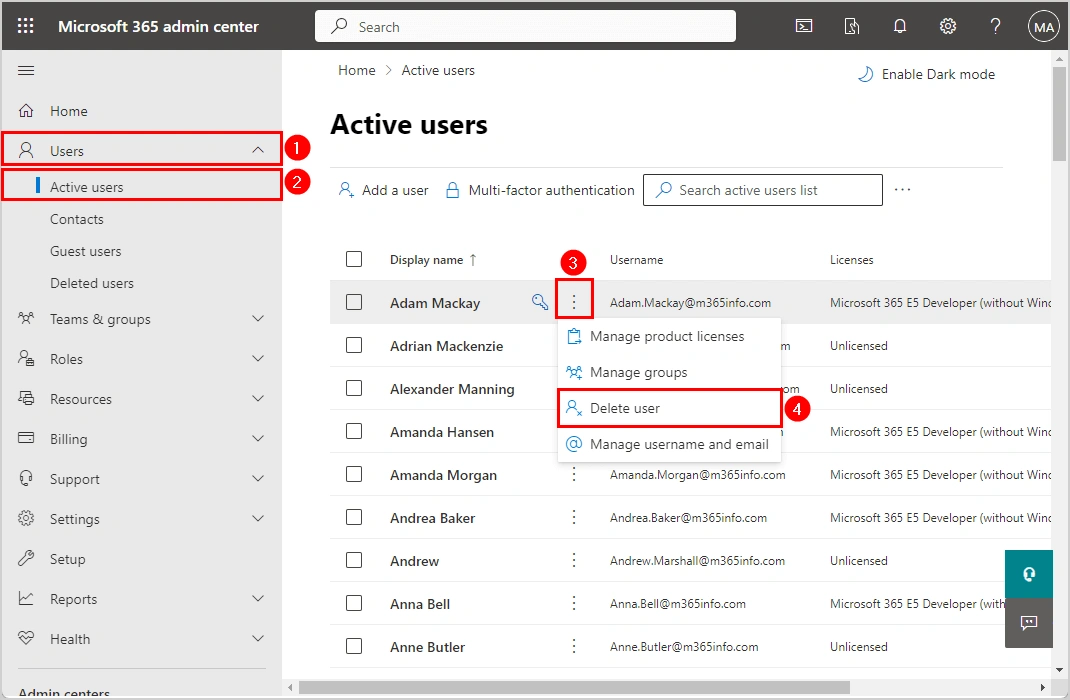
Go to Microsoft 365 Admin Center > Users > Guest users and review any outside accounts still listed there. Then check Microsoft Entra admin center > Roles and administrators to see whether any vendor, consultant, or former IT provider still has elevated access. After that, review your firewall, backup portal, remote support tool, and key business apps for any outside logins or shared vendor accounts that are no longer needed. Remove anything outdated, unused, or unclear.
Third-party access is one of the easiest things to overlook and one of the hardest things to explain after an incident. Vendors, consultants, and former providers often keep access long after the job is done. GiaSpace’s recent breach coverage and the latest DBIR both point to the same issue: third-party risk is rising, and every unnecessary outside login is one more path into your business.
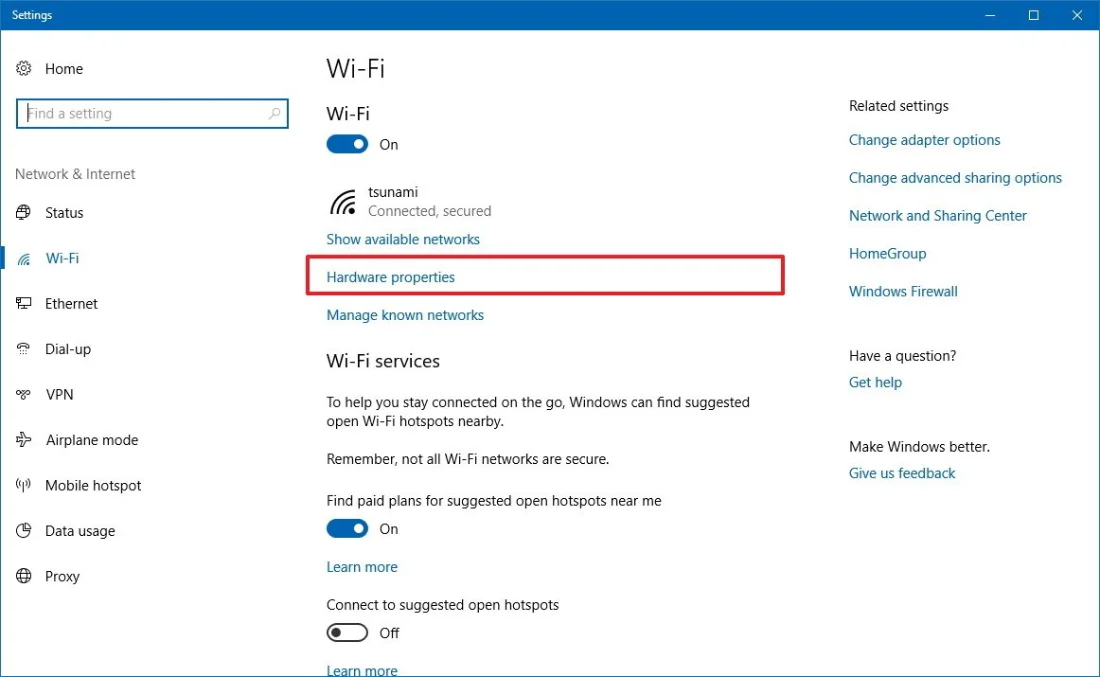
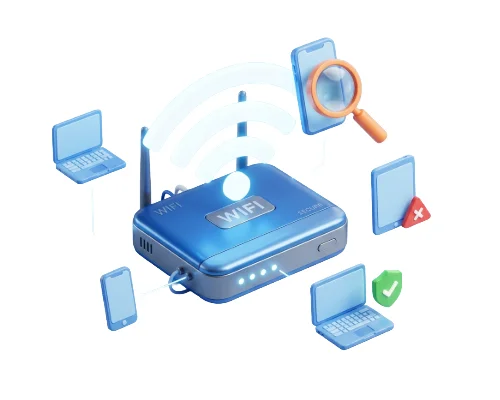
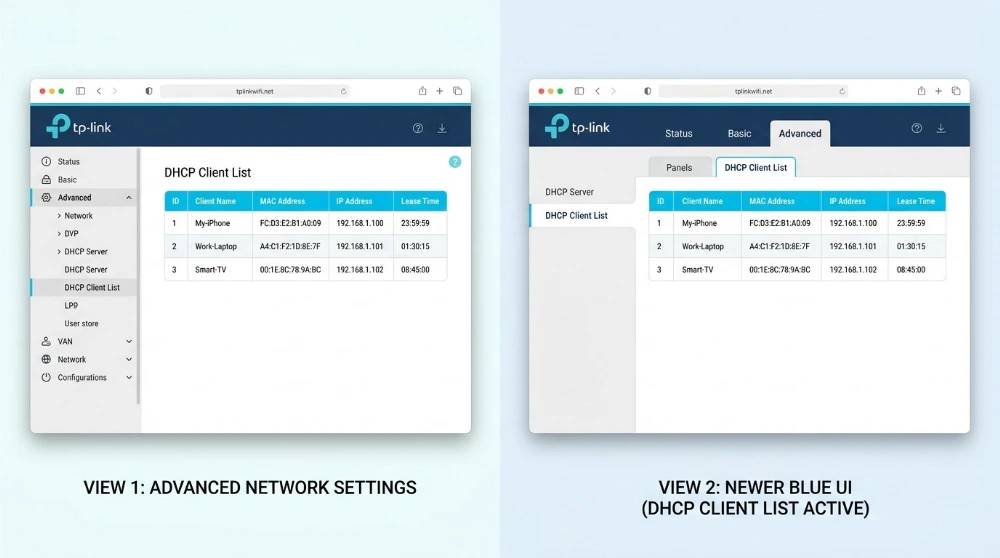
Log into your router’s admin panel (usually 192.168.1.1 or 192.168.0.1 in your browser) and look for a section called Connected Devices or DHCP Client List. Review every device on the list. If you see anything unfamiliar, unknown, or that does not belong to your team, remove it and change your Wi-Fi password immediately.
Most business owners set up their Wi-Fi once and never look at it again. Neighbors, former employees, or even attackers who got hold of your password could be sitting on your network right now. Anyone on your network can potentially see your shared files, printers, and internal systems.
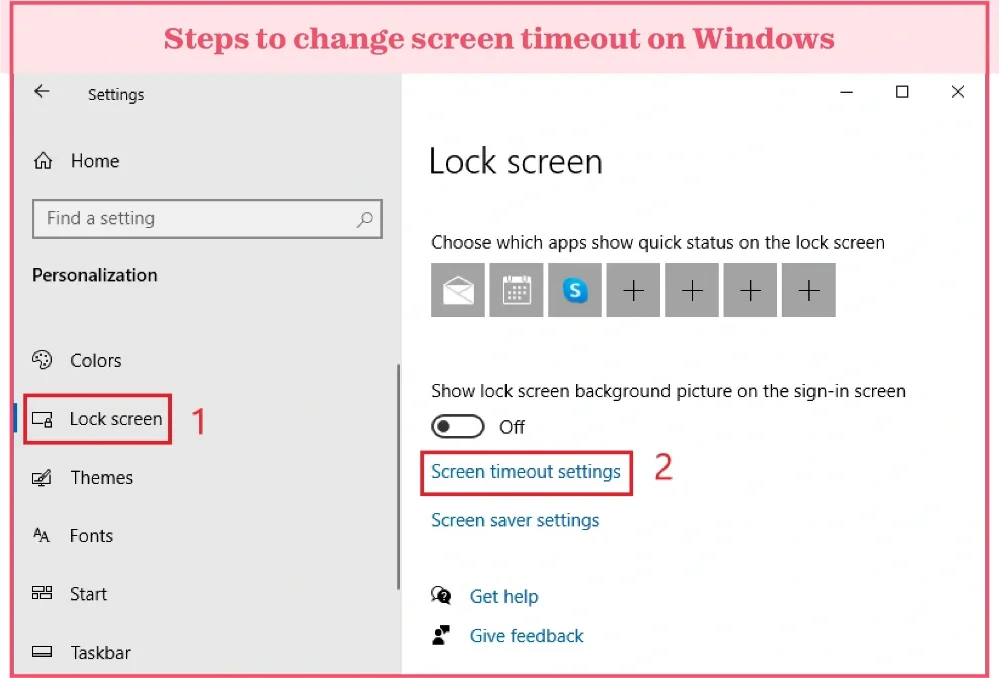
On Windows, go to Settings > Personalization > Lock Screen > Screen Timeout and set the screen to lock after 5 minutes of inactivity. On Mac, go to System Settings > Lock Screen and set it to require a password immediately. Check every work laptop, not just your own.
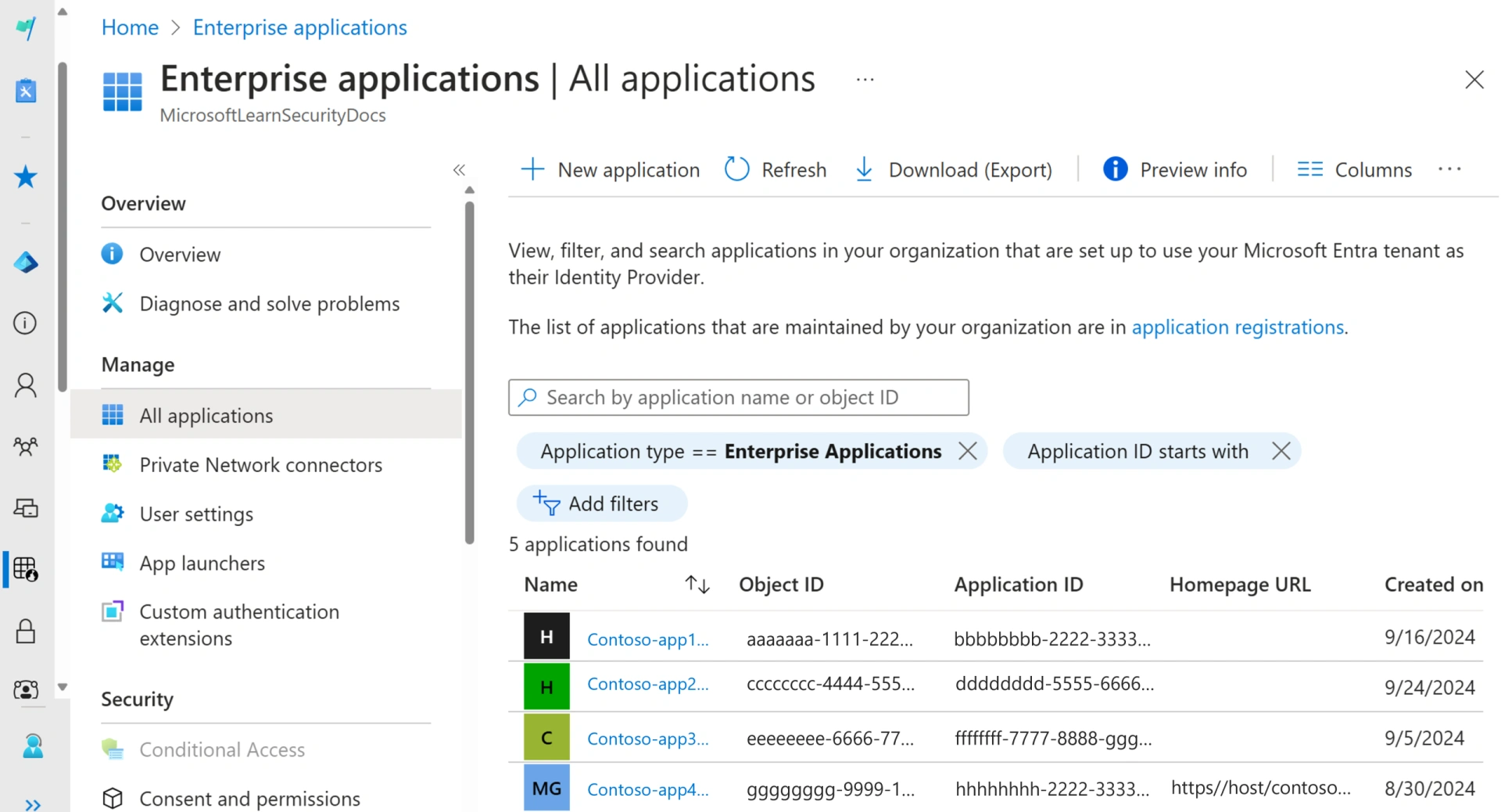
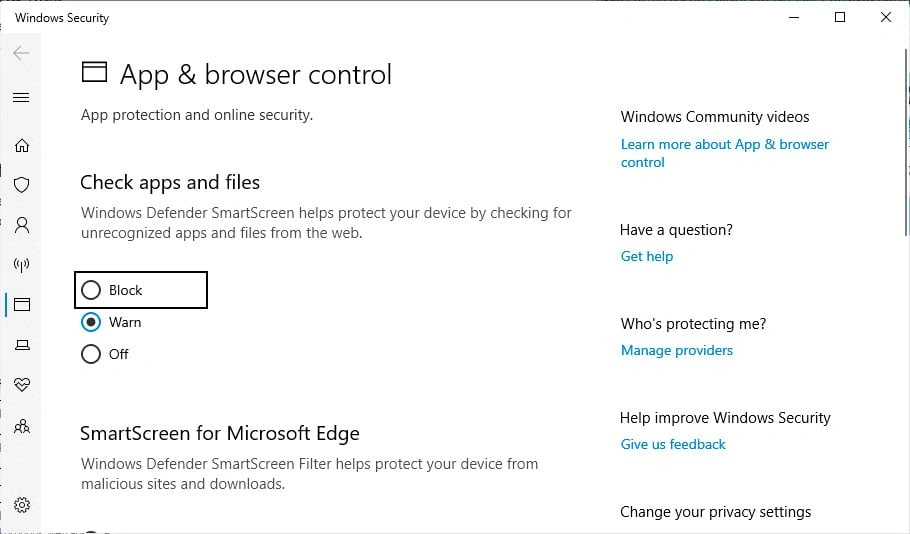
Consent phishing can trick a user into approving a malicious app instead of giving up a password. That gives attackers a quieter way into Microsoft 365 data, including mail and files, while making the activity look like a legitimate app connection.